Viewing subscribers
The subscribers section provides a view into subscriber activity in ProsperStack, including subscriptions, sessions, retained revenue, offer links and automation enrollments.
Click Subscribers in the left navigation to browse subscribers.
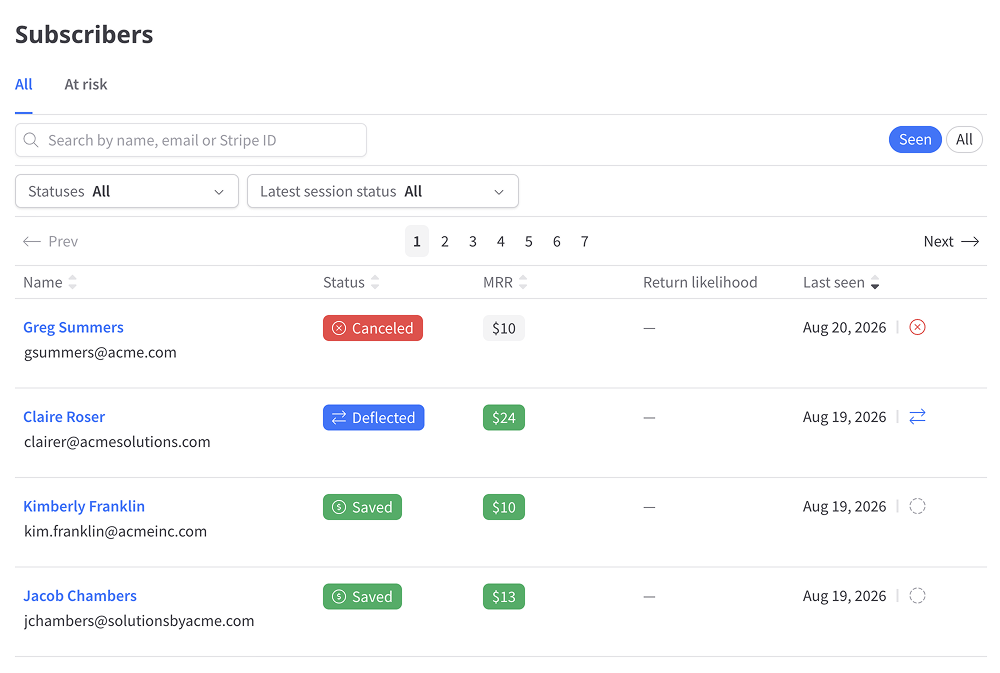
By default, the subscribers view displays a list of all subscribers seen in ProsperStack.
Viewing at-risk subscribers
Click At-risk to review non-canceled subscribers seen within the last 30 days whose latest retention session was Saved, Deflected or Incomplete. This view is intended as a focused follow-up list.
Filtering subscribers
Subscribers can be filtered with the controls at the top of the subscribers grid.
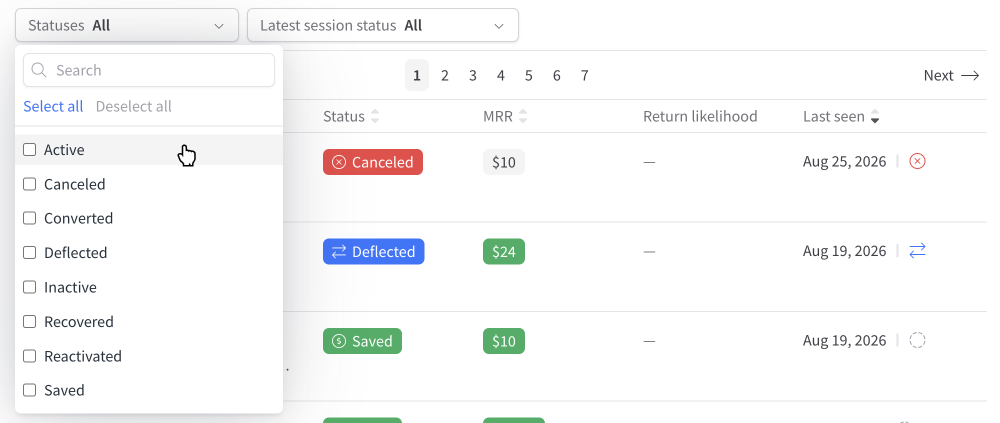
The following filters can be applied:
- Status — Active, Canceled, Deflected, Recovered, Reactivated, Saved, Converted or Inactive.
- Latest session status — Filter subscribers by the outcome of their most recent retention session: Saved, Deflected, Canceled or Incomplete. Learn more about session statuses.
- Seen / All — On platforms that support importing all customers, toggle between Seen (subscribers who have been observed in a ProsperStack experience) and All (all imported customers, including customers who have not yet been seen by ProsperStack). If the connected platform does not support importing all customers, only seen subscribers are shown.
Searching subscribers
Search by subscriber name or email address. When Stripe, Chargebee or Maxio is connected, you can also search by the corresponding platform customer ID.
Viewing subscriber details
From the subscribers grid, click a subscriber's name or email to view the associated profile.
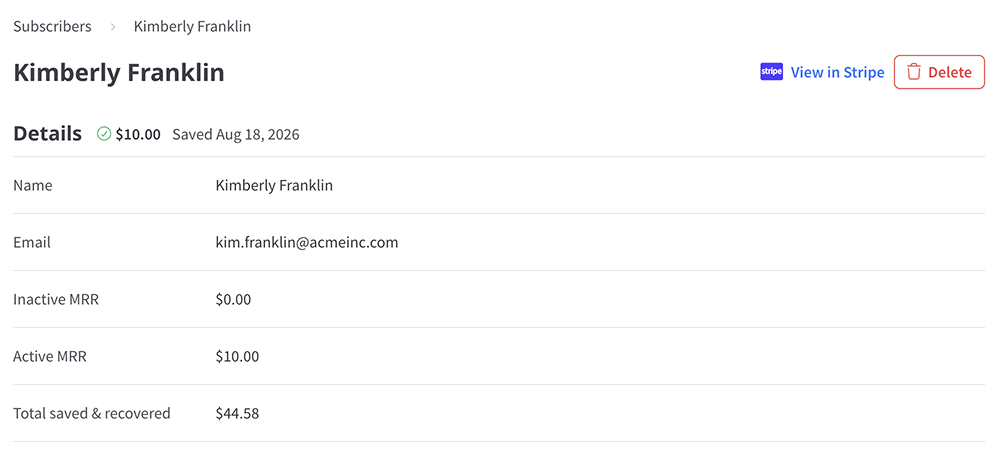
Depending on the subscriber and the features enabled for your account, the profile may include:
- Details — Name, email, active and inactive MRR or ARR, total saved and recovered revenue, and subscriber properties.
- Subscriptions — Subscription records associated with the subscriber.
- Offer links — Subscriber- and subscription-specific offer links.
- Sessions — Retention sessions associated with the subscriber.
- Retained revenue — Revenue records attributed to retention outcomes.
- Enrollments — Automation enrollments associated with the subscriber.
Copy an offer link
In the Offer links card, click Copy link for the link you want to share. Each URL is specific to the subscriber's subscription and offer. Only use a link while its displayed status indicates that it remains available.
For ways to generate offer links through automations, the API, HubSpot, or Klaviyo, see Offer links.
Open session details
Select a result in the Sessions card to open that session's detail page. Session details show the subscriber's path and outcome for that individual retention session.
Open enrollment details
When Automations are available, select an enrollment in the Enrollments card to open its detail page.