Customizing a flow
A cancellation flow turns the cancellation moment into a structured retention experience. Use flow steps to capture targeted feedback, understand a customer's intent and present appropriate offers and deflections.
Survey questions, conditional logic and interventions can be adjusted as you learn which experiences improve outcomes for different customer segments.
Connect your preferred AI tool using MCP to create and update flows, offers, segments and other resources.
To start customizing a flow, click Flows in the left navigation.
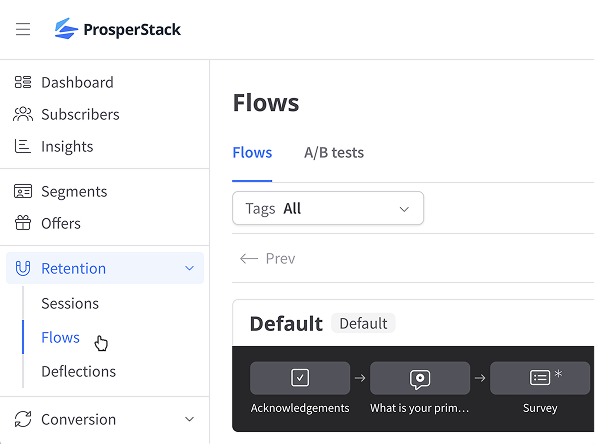
The main Flows page displays your existing flows and A/B tests.
If multiple flows is enabled, you can also create a new flow and manage flow routes.
Flow settings
To edit flow settings from the Flows page, click the ellipsis menu and then Flow settings.

Or from the flow editor, click the Settings button.

Basic settings
Specify a title for internal use and upload your logo to display in the flow.
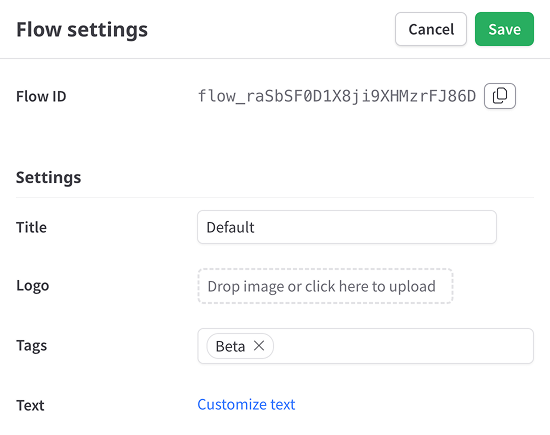
Tags
Use tags to categorize your flows. Find relevant flows faster with the tag dropdown on the Flows page.
Cancellation settings
On cancel
Specify what action should occur when a subscriber cancels their subscription through this flow:
- Do nothing - Handle cancellation on your end.
- Cancel subscription - Automatically cancel the subscription in the connected subscription platform (not available with a "Custom" integration). Choose whether the subscription should be canceled immediately or at the end of the billing period.
- Change subscription plan - Automatically change the subscription plan in the connected subscription platform (not available with a "Custom" integration). Select a plan and use Change plan at to choose whether the plan changes immediately or at the end of the billing period. ProsperStack can also optionally apply prorated charges and credits.
When immediate cancellation is selected and the connected platform supports the option, enable Cancel unpaid invoices to cancel any unpaid invoices when the subscription is canceled.
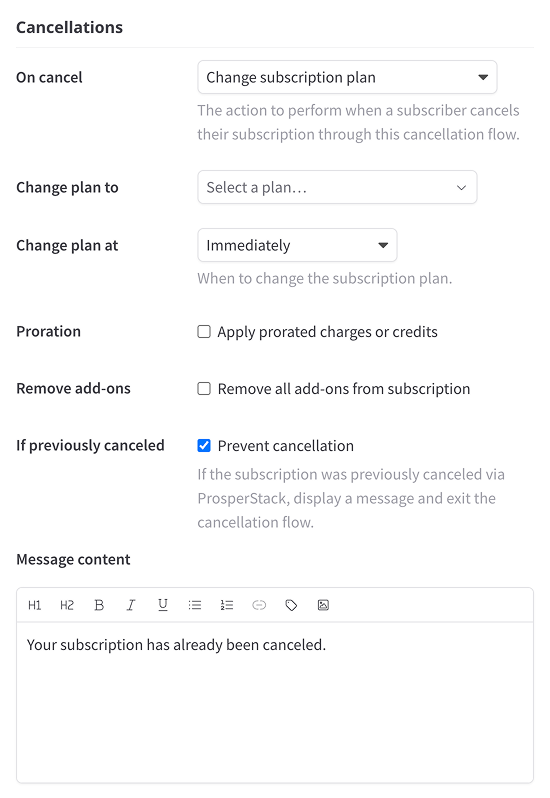
Remove add-ons when changing plans
Enable this option to automatically remove add-ons from the subscription in the connected subscription platform when ProsperStack changes the subscription's plan. The Remove all add-ons from subscription option appears only for supported platforms.
If previously canceled - Prevent cancellation
Display a customizable message and exit the flow if the subscription was previously canceled via ProsperStack.
One-click cancel
Enable one-click cancel to display a persistent cancellation link that allows subscribers to cancel immediately from any step in the flow.
Security
Require signatures
Require cancellation flow requests to be signed with your account secret. Learn more about request signing.
Implement and test signed requests before enabling this setting. In the confirmation dialog, select I have verified that cancellation flow request signing has been implemented, then click Enable. Finish by clicking Save in flow settings.
Step types
Each step in the cancellation flow serves a unique purpose. Pick from the available step types when designing the right flow for your business.
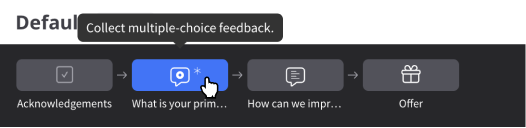
Click a step from the Flows page to customize the step in the flow editor.
Acknowledgements
Acknowledgements are statements the customer must accept before completing cancellation and are represented by checkboxes.
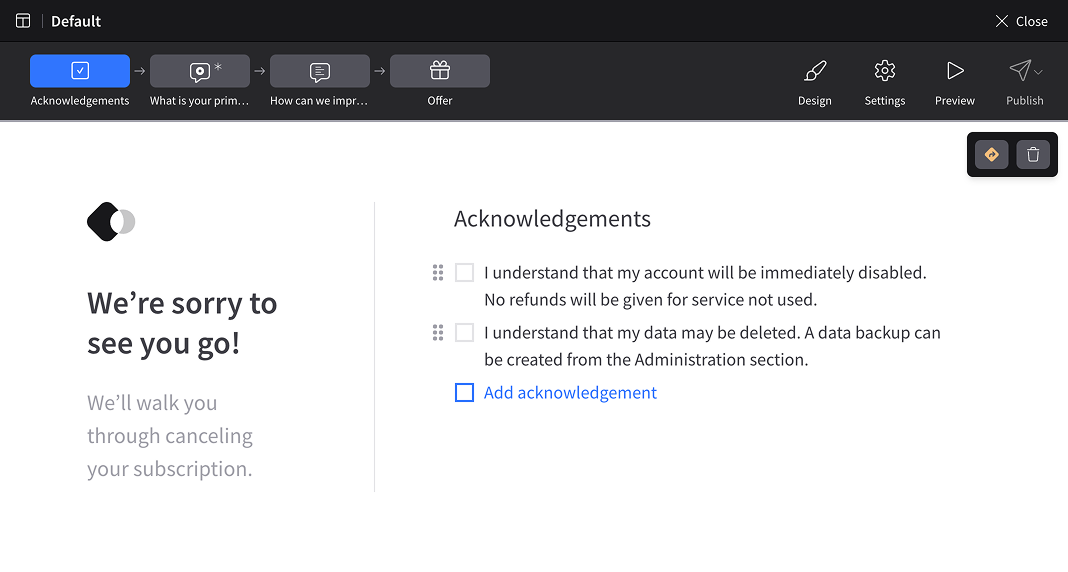
Use acknowledgements to clarify what will happen when the cancellation is complete, such as billing details, the effective date of cancellation or loss of data that will result.
To add an acknowledgements step, click the plus icon that appears between steps in the top section of the flow editor and choose Acknowledgements. Enter an internal Title and the subscriber-facing Label, then click Add. To change an acknowledgement, select its step, click Edit, update the fields and click Save.
Questions
Knowing why your customers leave can provide vital insight into your business. By default, the exit survey has two questions: the multiple-choice "primary reason for leaving" question and an open-ended text box. To get you started, the "reason for leaving" question is pre-populated with the most common options seen across cancellation flows.
Add more questions based on your service's unique needs. Questions can be displayed conditionally based on customer segments or previous answers, e.g. if the customer is leaving for a competitor, you can ask which competitor.
Question responses can also be used in offer rules to determine which offers are presented to your customers. For example, a customer who complains about price might be offered a coupon, whereas a customer that had issues with support might be offered an upgrade to a better tier of support.
Deflections
Sometimes a customer may be leaving because they didn't understand how to use the product, had a bad support experience or just didn't realize your product's full potential. Deflection cards are a way to display custom content so you can reinforce your product's value and offer an alternative to cancellation.
The content of a deflection card can be completely customized and an action button can be configured to redirect the customer to a URL. Configure the action button to redirect cancellations to a help article, a live chat widget, a custom page in your application or anything else you think up.
Offers
Offer steps allow you to make a last attempt to prevent your customer from canceling, e.g. via a coupon, trial extension or another intervention. Using segments, question responses and offer types, you can create complex rules for when to present offers and to whom. Presenting offers during cancellation covers this in detail.
Confirmation
Create a confirmation step to display a message at the end of the flow (after a subscriber has canceled or accepted an offer).
Instant cancel
Give subscribers an immediate option to cancel, in compliance with regulations in certain jurisdictions.
Text
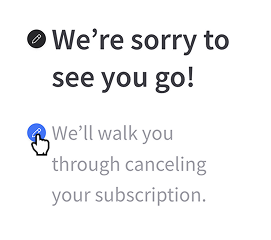
All text in the flow can be customized to match your product's voice. Click the pencil icon next to any piece of text in the flow editor to begin customizing the text.
For shared labels and default flow text, click Settings in the flow editor and then Customize text. If translations are enabled, select the language you want to edit, update the available text fields and click Save.
Using subscriber and custom property tags
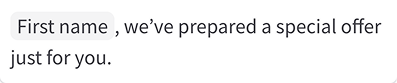
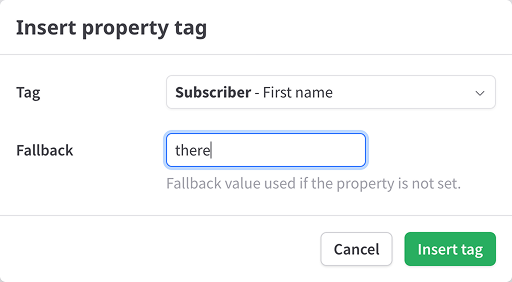
Property tags can be inserted in text fields to refer to a subscriber's first name, last name, email address or values from any custom properties. Click the tag icon at the top of the text editor to insert a property tag.
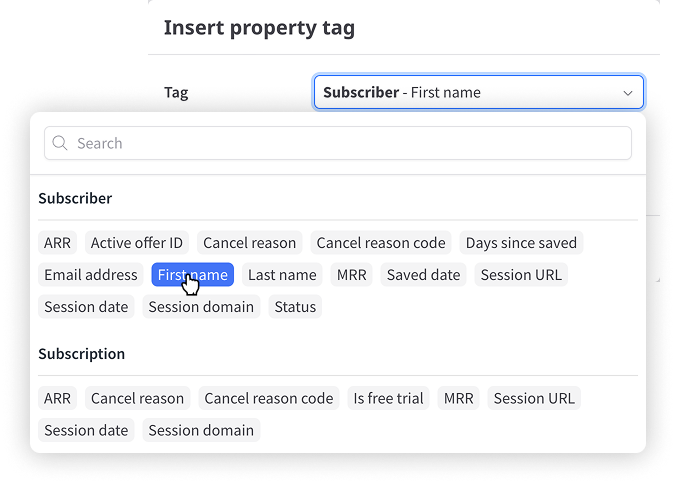
When inserting a tag, you can also enter a fallback text value to use if the subscriber or custom property is not set.
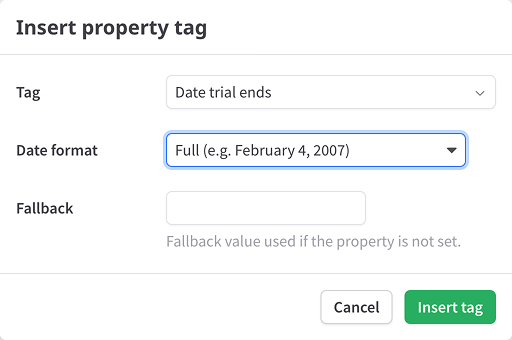
Formatting date custom properties
When inserting a date custom property tag, select a formatting option to control how the date is displayed.
Languages & translations
Support for languages & translations is included in the Enterprise plan.
Design
In addition to uploading your logo, the design of the flow can be completely customized with custom CSS.
Updating your flow
When you make changes to your cancellation flow, a draft version of the flow is created. You can make as many changes as you need without affecting your production cancellation flow. Once you're ready for your modified cancellation flow to go live, publish your changes for them to take effect.