Offer types
With ProsperStack you can present a variety of different offers to your customers to entice them to remain with you.
Available offer types vary by connected subscription platform. Refer to the platform feature support reference for details on the offer types supported by your platform.
Coupon
RetentionConversion
Coupon offers are a discount applied to the customer's subscription. When you create a coupon in ProsperStack, you can either use a coupon that you've already created in your subscription platform or you can have ProsperStack create a new one for you.
To create a new coupon in your subscription platform, select Create new coupon, or to use a coupon you've already created, select Use existing coupon.
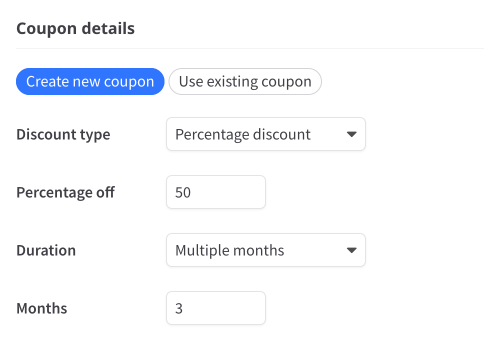
If you're creating a new coupon, fill in the details of the coupon, including discount amount and duration. If you're using an existing coupon, the coupon details will be prefilled automatically.
Discount types
Coupons can be one of the following types:
- Percentage — discounts the subscription by a percentage of the invoice amount.
- Fixed amount — discounts the subscription by a fixed dollar amount.
- Script — a Stripe script coupon whose discount amount is computed by a Stripe-hosted script. As the exact discount cannot be displayed in advance, script coupons are described generically as "a discount on your subscription." Script coupons cannot be used with payment-collecting offer goals (reactivation, conversion, or payment recovery).
Coupon duration
When creating a coupon, choose how long the discount applies. Available choices depend on your subscription platform:
- Once — Apply the discount one time.
- Forever — Apply the discount for the remaining life of the subscription.
- Multiple months or Multiple billing cycles — Apply the discount for a limited number of months or billing cycles.
Coupon ID
When using a custom platform integration, you can enter an optional Coupon ID or code from your billing system. This value is returned as the coupon's platform identifier so your application can apply the corresponding discount. For supported connected platforms, ProsperStack creates or retrieves the platform coupon identifier automatically.
Choose a subscription or customer coupon

If supported by your subscription platform, you can choose whether the coupon should be applied to just the subscription that is being canceled or the entire customer. In most situations, we recommend choosing Subscription, but if you'd like the coupon to be applied to all of the customer's subscriptions, select Customer.
Apply discount to order or items
On platforms that support per-item discounting, you may be able to choose how a new percentage-based coupon discount is applied:
- Order — The discount is applied to the order as a whole, even if the order is comprised of items belonging to multiple subscriptions.
- Items — The discount is applied only to the items belonging to the subscription that was passed into the cancellation flow. These discounts usually combine with any "subscribe and save" discounts already on the item.
This option is only available for percentage coupons and cannot be changed after the coupon has been created. Fixed-amount coupons always apply to the order as a whole.
Replacing other active coupons

By default, a coupon offer will not be presented to a canceling subscriber if the subscriber already has an active coupon. If you'd like your new coupon to replace any other coupons the subscriber may have active, you can enable the Replace coupons option. See When offers are not shown for other conditions that can exclude a coupon offer.
Ending trial when accepted
When a conversion offer is accepted, by default the customer's trial will automatically end. If you prefer to have the trial continue through the original term, you can disable the "End trial" option. Note that the coupon will take effect at the end of the trial period.
Change plan
RetentionConversion
Change plan offers will switch the customer to a new pricing plan as an alternative to canceling.
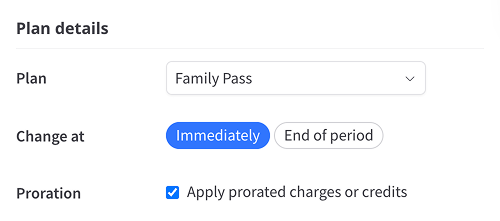
Select the plan the offer should switch a customer to from your list of available billing plans.
If your subscription platform supports scheduled plan changes, use Change at to choose when the accepted offer takes effect:
- Immediately — Switch the subscription as soon as the customer accepts the offer.
- End of period — Switch the subscription at the end of its current billing period.
On platforms without this choice, the subscription changes immediately.
For supported immediate plan changes, enable Reset billing date to begin a new billing cycle on the date the plan changes. This option is not available for changes scheduled at the end of the billing period.
If you'd like the customer to be billed for any prorated charges or credits when an immediate plan change occurs, toggle the Apply prorated charges or credits option.
Applying a coupon to the new plan
You can also apply a coupon to the new plan by selecting one of your existing coupon offers in the Additional coupon offer section.
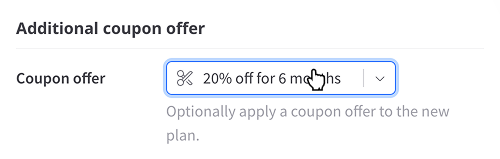
The selected coupon will be automatically applied when the change plan offer is accepted by a customer.
Upgrade
RetentionConversion
Upgrade offers move a customer to a higher-tier subscription option. The destination field depends on your subscription platform:
- For Naviga, select a Paper Code, then select the Upgrade offer within that publication.
- For Piano, select an Upgrade term. If the selected dynamic term contains defined billing periods, also select the required Period to apply when the offer is accepted.
When Upgrade at is available, choose Immediately or End of period. If the option is not available, the upgrade occurs immediately.
Downgrade
RetentionConversion
Downgrade offers move a customer to a lower-tier subscription option. On Naviga, select a Paper code and then the Downgrade offer.
For Downgrade at, choose Immediately or End of period.
Trial extension
RetentionConversion
Trial extension offers will extend the customer's trial by a fixed amount of days.
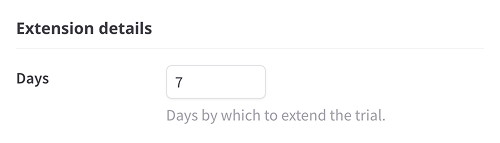
Enter the number of days you'd like the offer to extend a customer's trial for. When the offer is accepted, the customer's trial period will be automatically extended in your subscription platform.
By default, trial extension offers are shown only to subscribers with an active trial. On supported platforms, enable Allow without active trial to make the offer available without one. When this setting is enabled, select Apply prorated charges or credits to use proration when the extension is applied without a trial.
Pause subscription
Retention
Pause subscription offers will pause the customer's subscription (halt payments) for a fixed period of time. A pause subscription offer can pause the customer's subscription for a preset period of time or allow the customer to select from up to three duration options.
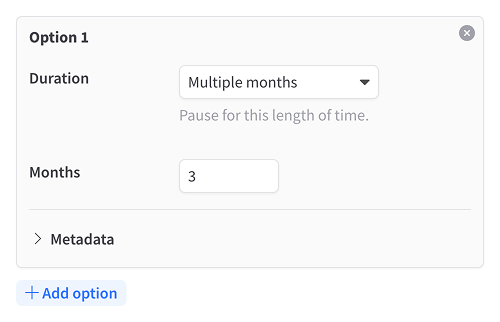
You can create up to three distinct pause options to present to the customer. Click Add option to add additional options.
For each pause option, choose the Duration. Depending on your subscription platform, the choices can include:
- Billing cycles
- Multiple months
- Multiple weeks
- Multiple days
- Indefinitely
- Choose date
For billing cycles, months, weeks, or days, enter a positive number.
With Choose date, the customer selects when to start and resume the pause while accepting the offer.
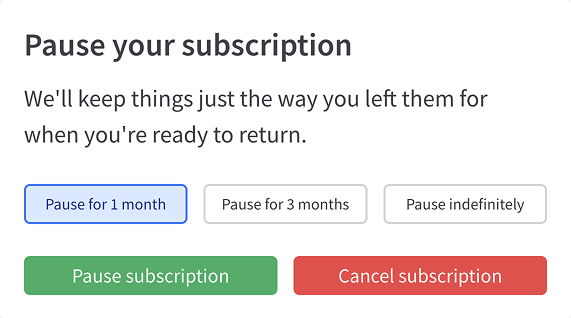
When adding multiple options, the text of each option can be customized.

Pause billing date options
When creating a pause offer, you can also choose how the billing date is handled during the pause:
- Do nothing (none) — Pauses payments without changing the existing billing schedule. Once the pause ends, billing resumes on the original billing dates as if no pause had occurred.
- Extend by length of pause (extend) — Shifts the next billing date forward by the length of the pause, so customers receive their full remaining prepaid time once the pause ends.
- Reset when pause ends (reset) — Starts a new billing cycle on the day the pause ends, resetting the billing schedule entirely.
Note: The extend and reset billing date options are only available with the Stripe platform integration.
How billing dates are shifted during pauses
For pauses using the extend or reset options, ProsperStack sets a trial period until the date when the subscription should resume billing. This moves the billing date forward without prorated charges and allows you to either preserve the customer's full prepaid value or start a new billing cycle, depending on the billing date option you've chosen.
Choose when to pause the subscription

If supported by your subscription platform, you can choose to either pause subscriptions immediately or at the end of the customer's billing period.
Modify subscription
Retention
Modify subscription offers can make changes to the customer's subscription such as adding or removing line items or add-ons.
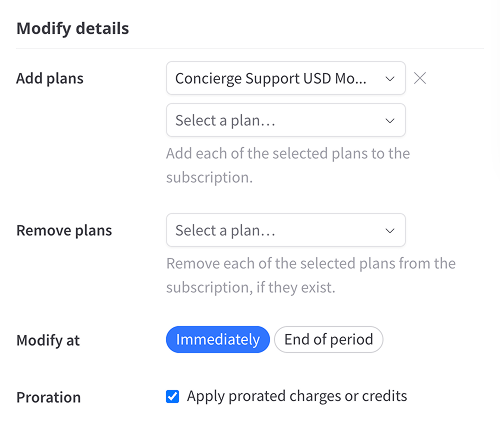
If your subscription platform supports multiple subscription line items (i.e. multiple plans per subscription), you can select plans to add to the subscription as well as plans to remove.
If your platform supports add-ons, you can select add-ons to add or remove from the subscription.
On platforms that support add-on quantities, configure each included add-on with either a fixed Quantity or Match plan quantity. Matching uses the quantity of the subscription's plan instead of a fixed value. The fixed quantity defaults to 1.
For removed add-ons, choose Specific add-ons to select the individual add-ons that should be removed, or All add-ons to remove every add-on from the subscription.
With the Modify at option, you can choose to apply the changes immediately or at the end of the customer's billing period.
You can also choose whether or not the customer will be billed for any prorated charges or credits with the Apply prorated charges or credits option. This option is only available when the modification is set to apply immediately.
When a modify subscription offer is accepted, ProsperStack will apply the changes to the subscription automatically.
Reschedule order
Retention
Reschedule order offers allow customers to skip or reschedule their next order as an alternative to cancellation.

By default, customers can skip or reschedule, but rescheduling can be disabled when creating the offer.
Enter Skip button text and Reschedule button text to customize what your subscribers see.
Change frequency
Retention
Change frequency offers allow customers to modify delivery frequency based on options you configure.
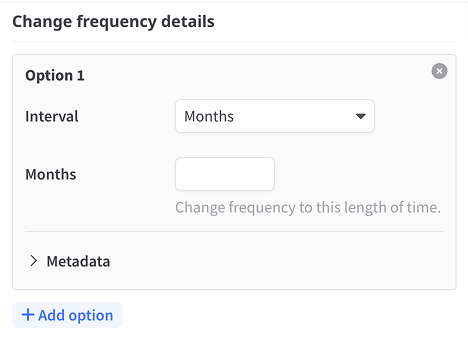
You can create up to three distinct options for the customer to choose from. Click Add option to add another frequency.
For each frequency option, select an Interval (Years, Months, Weeks, or Days) and enter a number.
When presenting multiple choices, you can customize the Text shown to the customer.
Product swap
Retention
Product swap offers allow customers to choose a different product instead of canceling.
When creating the offer, select whether to display any available products or specific products. When specifying products, you may also choose which product variants are made available.
To present more than one specific product, select the first product and its available variants, then click Add product. Repeat this for each additional product.
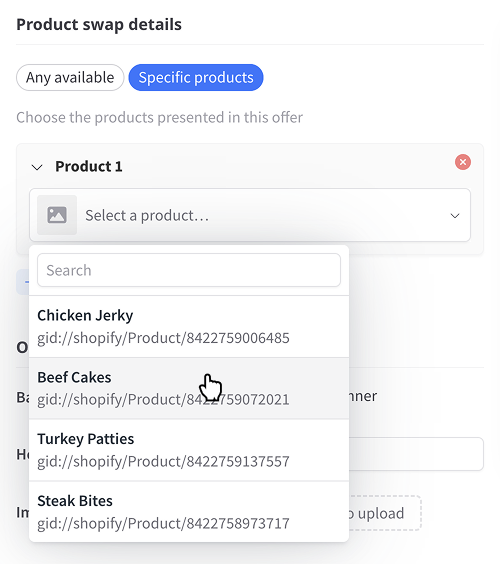
Note for Bold integrations: The "any available" option will present products from within a subscription group, based on the customer's current product.
Free / discounted gift
Retention
Select a product from your catalog to offer as a gift. If the product has multiple variants, choose a variant to present.
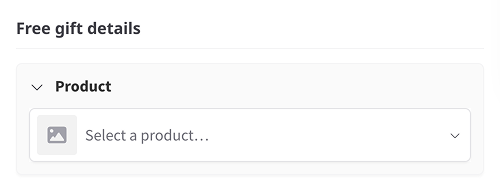
For Ordergroove, this type appears as Discounted gift and can represent a discounted or free incentive. After choosing the product and variant, select the required platform Offer that defines the promotion.
Purchase
Conversion
Use a Purchase offer to present a one-time purchase to your users, such as a data migration or additional usage credits.

Specify a product and plan from your catalogue. Only one-time products/plans are available.
Reactivate
Reactivation
Reactivate offers encourage former subscribers to start a new subscription. They are available for landing page offers on supported subscription platforms.
Configure the incentive using the same options described in the Coupon section.
When the customer accepts the offer, ProsperStack uses the applicable plan and payment information to reactivate the subscription and applies the configured coupon through your subscription platform.
Payment recovery
Payment recovery
Payment recovery offers encourage subscribers with a failed payment to update their payment information. They are available for landing page offers on supported subscription platforms.
Configure the incentive using the same options described in the Coupon section.
When the customer accepts the offer, ProsperStack applies the coupon and uses the updated payment method to retry an identifiable past due invoice. If no past due invoice can be identified, the subscription platform handles its normal payment retry process.
Custom
RetentionConversionReactivation
Custom offers allow you to create unique ways to incentivize your customers to stay. Implement custom logic in your application to take action when they are accepted.