Presenting offers as part of a campaign
Use conversion offers in a campaign to entice customers to convert or upgrade their subscription.
Offer rules determine which offers are displayed to which customers, and can be as simple or complex as your needs require.
Rules
At least one offer rule is required when creating a new campaign, but they can also be modified after the campaign has been created. Adjust offer rules when editing a campaign in the Rules section.
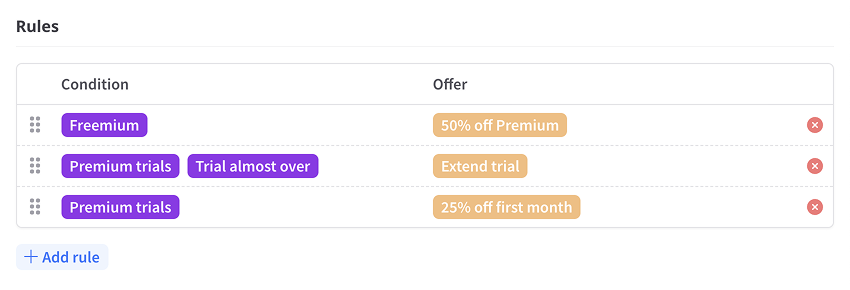
Click Add rule to start a new rule or click into an existing rule to enter editing mode.
Drag existing rules by their handles to change their order. Rules are evaluated from top to bottom, so place more specific rules before broader ones.
Understanding rules
A rule consists of two columns:
- Condition — Target customer segments, segment groups or inline conditions.
- Offer — Choose which offers to present, if any.
A rule defines which offers to show based on its segments, segment groups and property conditions. A customer matches when they satisfy any selected segment, group or condition and will be displayed one of the rule's offers.

In the example above, any customers in the segments "Premium trials" or "Trial almost over" would match the rule and be presented the "Extend trial" offer.
Rules can have multiple offers. When a rule has multiple offers, one is chosen randomly to display to the customer.
Rule evaluation
Rules are evaluated from the top down. When a customer matches a rule, rule evaluation stops and no more rules are evaluated.
For example, in the example below, if the customer matches the first rule, they will be presented with the "25% off first month" offer. The remaining rules will not be considered.
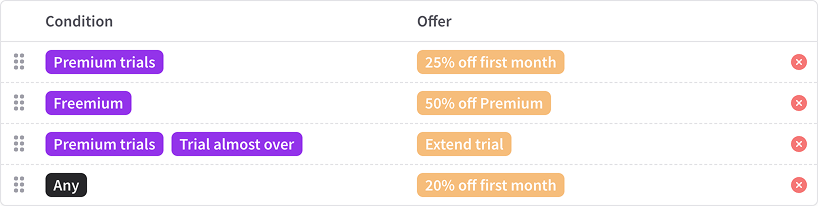
If a customer matches a rule with no offers, then no offer is presented and rule evaluation stops.
When offers are not shown
In some cases offers can't be presented despite matching an offer rule, e.g. when the customer has previously accepted an offer. See When offers are not shown for details.