Creating an email
Automated emails are available for reuse in the email library.
To create a new email, add or edit an Email step, scroll down to Email library and click Create email. Enter a required Name to identify the email in the library, design the email and then click Save.
To change an existing reusable email, use the edit action on its card in the library. Make your changes and click Save.
Email editor
The email editor allows you to design flexible and personalized emails in a drag-and-drop interface.
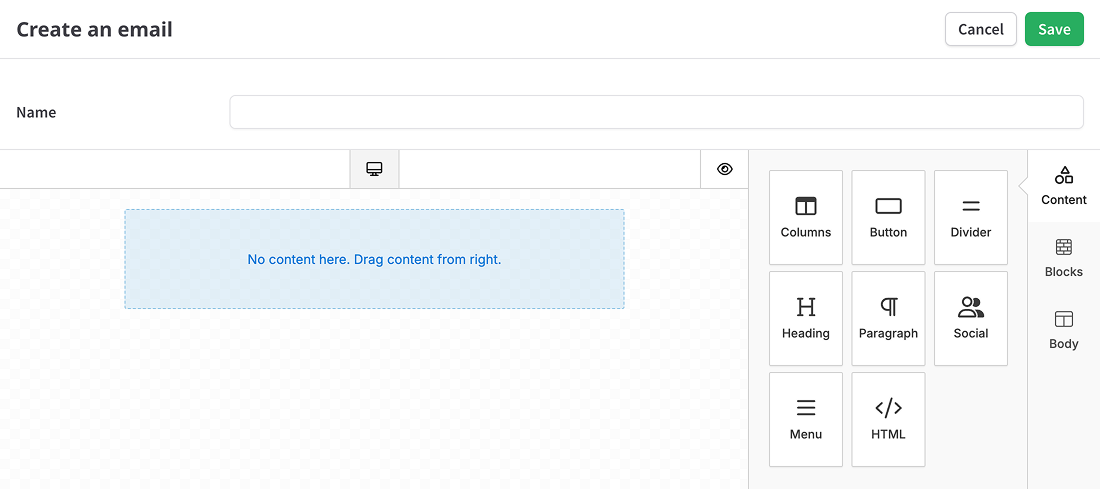
On the left is the body of the email. Start by dragging content or blocks onto the body.
Click the tabs on the right to switch between editor panels:
- Content - Drag and drop items from this panel to add headings, body copy, social links, custom HTML and more.
- Blocks - Blocks organize content at a structural level, such as two- and three-column layouts.
- Body - Adjust overall settings including background and link colors, fonts, etc.
Merge tags
Merge tags allow you to personalize email content with subscriber, subscription and session properties.
To insert a tag, focus a text box and move your cursor to the desired position for the tag. In the toolbar below, click Merge Tags and select a tag.
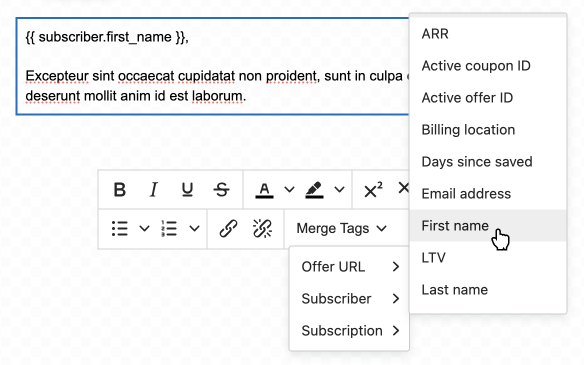
Available merge tags depend on the connected platform, account features and the offers available to the automation.
| Category | Availability |
|---|---|
| Subscriber and Subscription | Supported subscriber and subscription fields for the connected platform |
| Session | Created date of the most recent cancellation session for the enrolled subscription |
| Properties | Custom subscriber and subscription properties, when custom properties are enabled and available |
| Offer URL | Landing page offers available to the automation |
| Payment Update URL | Connected platforms that support collecting updated payment details |
Linking to an offer
To include a landing page offer in your email, use an offer merge tag.
As described above, position your cursor at the desired location in a text box, click Merge Tags in the toolbar below, hover over the Offer URL menu and select an offer.
If an offer-specific condition prevents the offer from being presented, no email will be sent and the enrollment will be aborted.
Previewing emails
Click the eye icon to preview your email in desktop, tablet, mobile and custom resolutions.