Zendesk integration
Prosper planEnterprise plan
The Zendesk integration connects with your Zendesk account to link user data with subscriber custom properties in ProsperStack. Use custom properties in segments to enable targeted offers, conditional cancellation flow steps and segmented reporting. Learn more about custom properties.
The Zendesk integration also allows you to store cancellation survey responses and subscriber cancel session statuses on your Zendesk users in custom user fields.
Connecting your Zendesk account
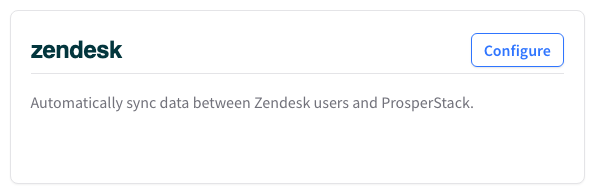
Click the gear icon in the main header to open Settings, then select Integrations. Click Configure in the Zendesk section to open the Zendesk integration page.
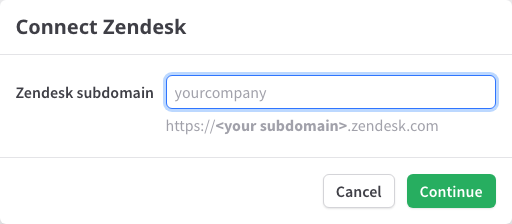
Click Connect Zendesk, enter your Zendesk subdomain and click Continue.
Your subdomain is the part before .zendesk.com in your Zendesk URL.
You'll be redirected to Zendesk to sign in and authorize ProsperStack. ProsperStack requests permission to read and update users and to read account settings.
You must sign in as a Zendesk admin to connect the integration.
Once your account is connected, you can map Zendesk user fields to custom properties in ProsperStack, choose where to store cancellation survey answers and configure a user field to store session statuses.
If the connection stops working, for example because access was revoked in Zendesk, click Reconnect on the Zendesk integration page.
Mapping properties
In the Property mappings section, you can select Zendesk user fields to map to ProsperStack subscriber custom properties. Your custom user fields are available along with standard fields like name, phone and tags.
Select a Zendesk user field from the dropdown on the left, then choose a corresponding custom property in ProsperStack (or create a new one) to store the data.
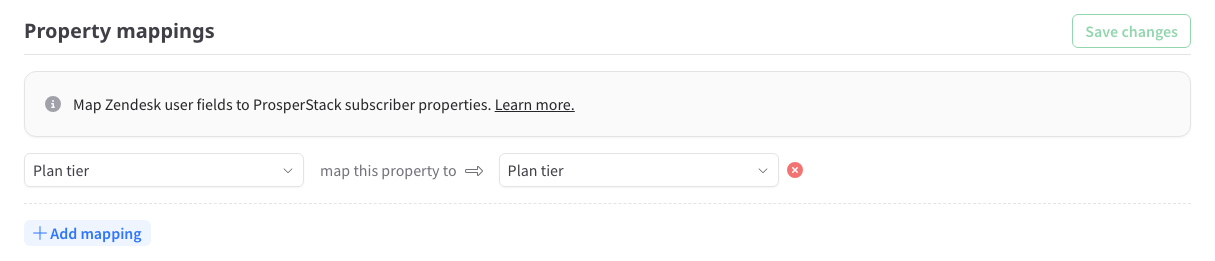
When creating a custom property in ProsperStack, make sure to choose an appropriate data type (text, number, etc.). ProsperStack will attempt to convert the data found in the Zendesk user field to the type of custom property that the field is mapped to.
Click the + Add mapping button to add another mapping. You can add as many mappings as you need.
Once you've configured your property mappings, click Save changes. ProsperStack will begin collecting your Zendesk user data. Mapped fields sync every hour and when a subscriber starts a cancellation session.
Sending data to Zendesk
Session statuses
To store session statuses in Zendesk, first create a custom user field of the Text type in Zendesk. You can find its field key in the Zendesk Admin Center under People → Configuration → User fields.
Enter the field key in the Session status user field key field, then click Save changes.

When a cancel flow session is completed, ProsperStack will store its status
(canceled, saved or deflected) in this field.
Question mappings
In the Question mappings section, you can select survey questions to map to Zendesk custom user fields. When a subscriber answers a survey question in your cancellation flow, ProsperStack will send the data to Zendesk and store the answer in the selected field.
Select a question from your available cancellation survey questions using the dropdown on the left, then select the Zendesk user field that will store the answer data. Only custom user fields of the Text and Multi-line types are available.
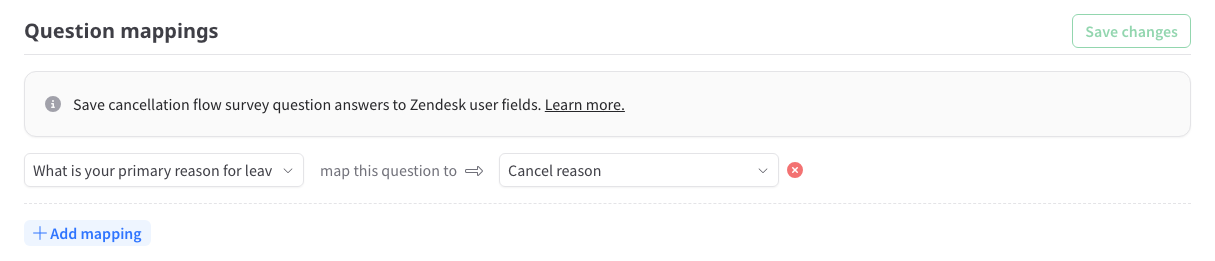
When storing the answer to a multiple choice survey question in Zendesk, ProsperStack will use the option's reason code if configured. If no reason code is configured, the full text of the multiple choice option will be stored.
Click the + Add mapping button to add another mapping. You can add as many mappings as you need.
Once you've configured your question mappings, click Save changes. ProsperStack will now sync your selected survey question answers to Zendesk.
Matching Zendesk users
Zendesk users are matched with subscribers in ProsperStack by email address. For your data to sync, make sure that customers in your connected subscription platform have a valid email address that matches a user in Zendesk. ProsperStack doesn't create Zendesk users, so nothing is sent to Zendesk for a subscriber with no matching user.
View subscribers in Zendesk
Subscribers matched with a Zendesk user have a View in Zendesk link on their subscriber page, which opens the user in Zendesk.
Disconnecting Zendesk
Click Disconnect on the Zendesk integration page and confirm. ProsperStack will stop syncing data with Zendesk. Data already stored in Zendesk user fields and ProsperStack custom properties stays in place. Disconnecting doesn't revoke ProsperStack's OAuth access in your Zendesk account.