Editing rich content
Some fields in ProsperStack, such as deflection and offer content, support rich text, which allows you to add headings, format text, and insert tags, links and media.

Adding a link
To add a link, select the text that you want to make into a link. Click the link icon in the editor toolbar to open the link dialog, enter a destination URL and click Apply.
Adding and editing images
To insert an image, click the image icon in the editor toolbar to open the image dialog. Drop an image onto the upload area or click the area to select a file, then click Insert image.
To replace an inserted image, select it in the editor and click the pencil icon. Drop or select the replacement image, then click Save.
Inserting videos
You can also insert videos in the content section to present a custom video message to your subscribers. Supported video platforms include Vimeo, Wistia, Loom and YouTube.
Click the video icon in the editor toolbar to open the video dialog. Choose your video provider and paste the URL to the video in the Video URL text box.
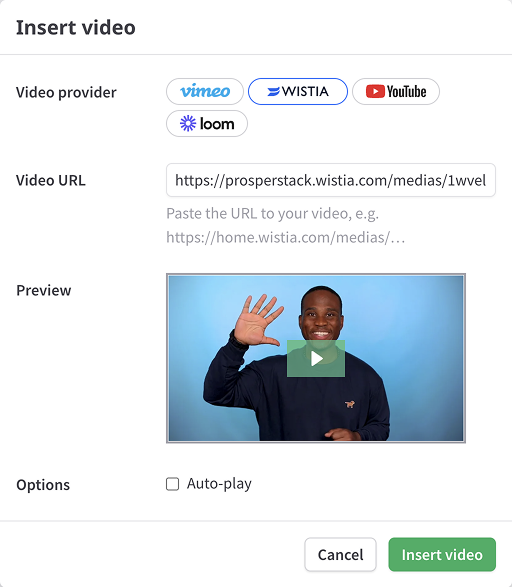
If you'd like the video to auto-play when the deflection card is viewed by a subscriber, toggle the Auto-play option. Select Start muted to begin playing the video without sound, which allows autoplay to work on all devices including mobile browsers. If you leave Start muted off, the video will play with sound but may not autoplay on mobile browsers.
To edit an inserted video later, select it in the editor, click the pencil overlay, update its settings and click Save.
Inserting property tags
Property tags personalize content with subscriber details or custom property values.
To insert a property tag, click the tag icon in the toolbar editor to open the tag dialog and choose a property.
If the property is a date, choose its Date format.
If the property is numeric, choose its Number format:
- Unformatted displays a value without separators, such as
100000. - Formatted adds number separators, such as
100,000. - Currency displays the value as currency, such as
$100,000.
Optionally enter a Fallback to display when the property has no value.
Click Insert tag.