Presenting offers during cancellation
Use offers to save customers at the point of cancellation. Rather than showing the same incentive to every customer, you can use offer rules to customize which offers are shown based on customer segments and cancellation answers, allowing you to test offers and compare results across distinct customer contexts.
Rules
To customize offer rules, click Flows in the left navigation and then click the Offers step.
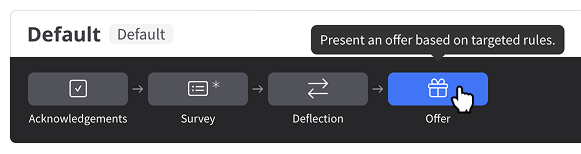
Click Add rule to start a new rule or click into an existing rule to enter editing mode.
Drag existing rules by their handles to change their order. Rules are evaluated from top to bottom, so place more specific rules before broader ones.
Understanding rules
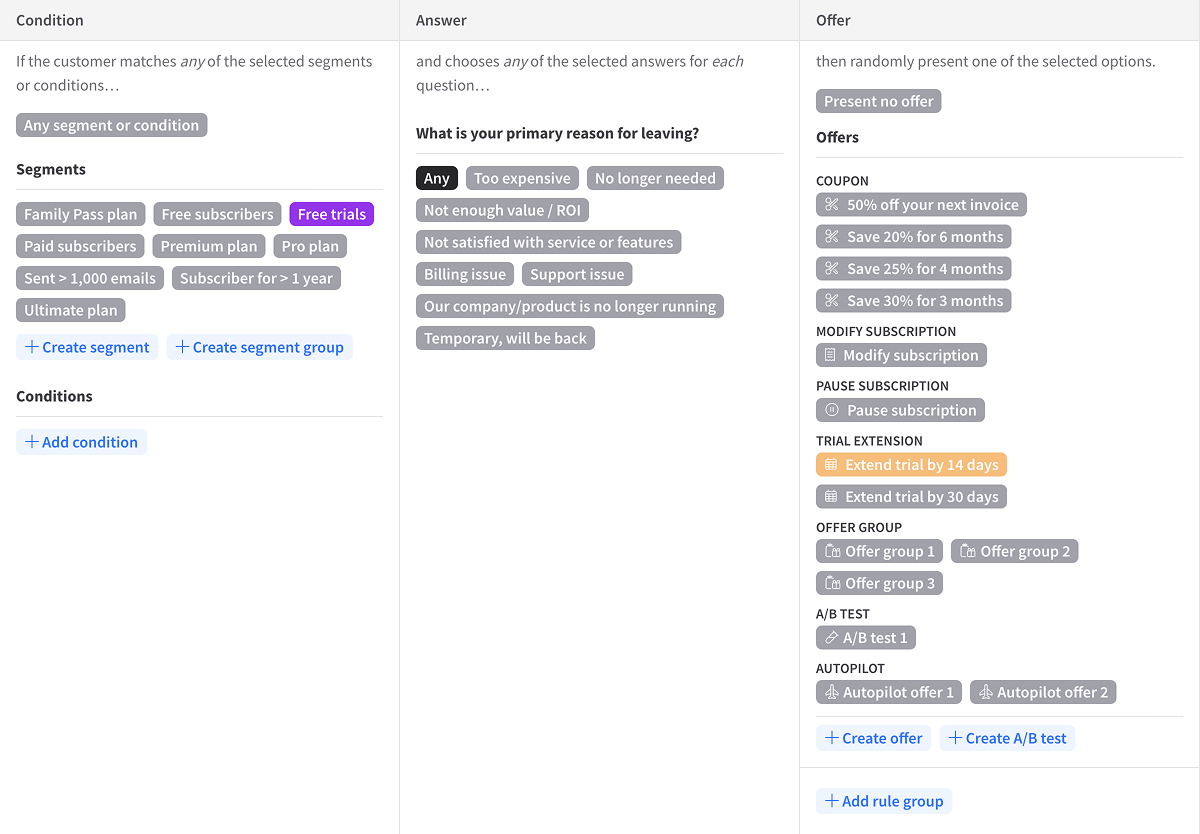
A rule consists of three columns:
- Condition — Target customer segments, segment groups or inline conditions.
- Answer — Target answers from any eligible earlier multiple choice question.
- Offer — Choose which offers to present, if any.
A customer matches the rule when they match any selected segment, segment group or inline condition and choose any selected answer for each configured question. Choose Any in the Condition or Answer picker when that part of the rule should not restrict matching.

In the example above, any customers in the segments "Premium plan" or "Pro plan" who answered "Too expensive" or "Not satisfied with service or features" would match the rule and be presented one of the two associated offers.
When a rule has multiple offers, one is chosen randomly to display to the customer.
When the rule is configured, click Save. Offer rule changes are part of the flow draft and must be published before they affect the live flow.
Offer rule groups
Enterprise plan
Offer rule groups allow for finer control of offer randomization inside an offer rule.
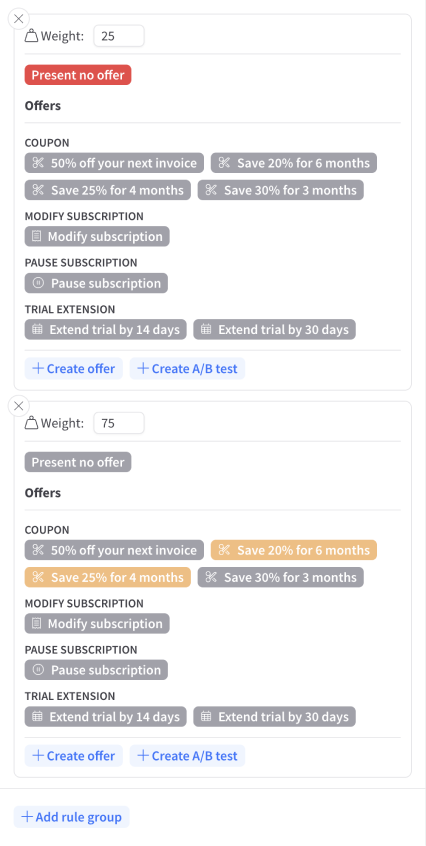
Click the Add group button to add a group inside an offer rule. You can configure as many groups as needed. If the offer rule matches, a random group will be chosen based on the configured weights.
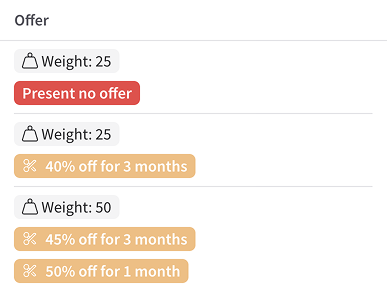
For example, in the example group above:
- 25% of matches will get no offer
- 25% of matches will get the "40% off for 3 months" offer
- 50% of matches will get either the "45% off for 3 months" or the "50% off for 1 month" offer (chosen randomly)
Rule evaluation
Rules are evaluated from the top down. When a customer matches a rule, rule evaluation stops and no more rules are evaluated.
For example, in the example below, if the customer matches the second rule, they will be presented with the "45% off for 3 months" offer. The remaining rule will not be considered.

If a customer matches a rule with no offers, then no offer is presented and rule evaluation stops. In the example above, if the customer matched the first rule, no offer would be presented to that customer at cancellation.
Comparing offers (A/B testing)
ProsperStack makes it easy to experiment with different offers to find which works best. When you add multiple offers to a rule the offers will be presented randomly. After enough data is collected, you can compare the acceptance rates of the offers to find which are most effective at retaining customers.
ProsperStack also offers advanced A/B testing of offers for users on the Prosper and Enterprise plans.
Multiple offer steps
By default, a cancellation flow starts with a single offer step at the end of the flow. If you'd like to present multiple offers during the flow, you can add more offer steps by clicking the + icon between steps at the top of the editor and choosing Offer in the menu. Enter a title and click Add.
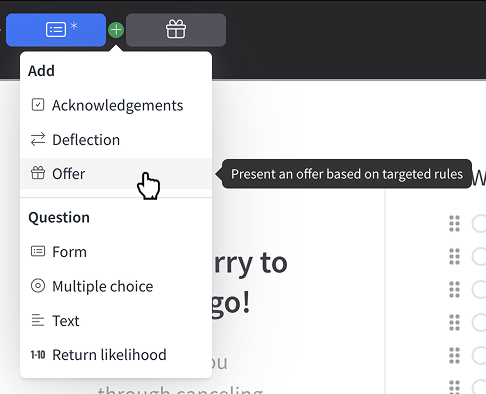
Offer steps can also be moved around in the flow the same way as any other step — just drag and drop.
When offers are not shown
In some cases offers can't be presented despite matching an offer rule, e.g. when the customer has previously accepted an offer. See When offers are not shown for details.